
Notes allow you to add any information to an object that may be relevant- vendor & workforce details, calculations, segments, etc.
Instructions
After placing an object, click the + button in the properties panel. You can then type your notes in the box provided. Clicking off the box saves your note.
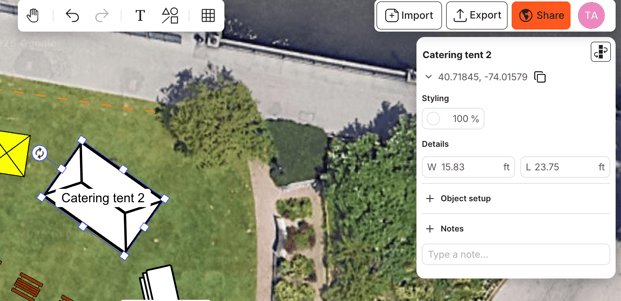
To delete a note, highlight the text and press "Backspace" or the "Delete" key, and the note will be removed.
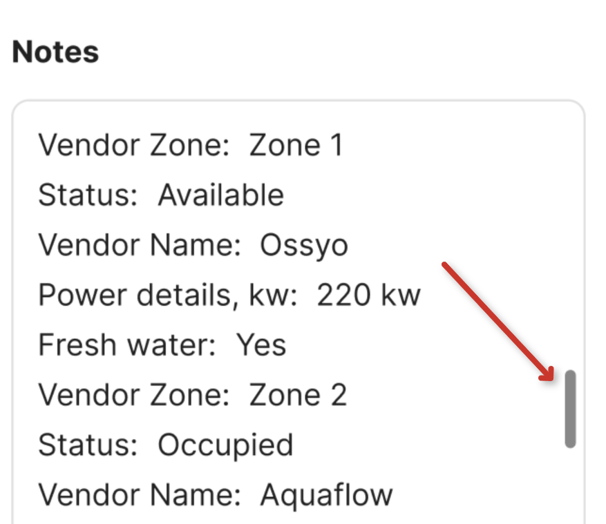
When there is a large amount of text, the scroll bar can be used to view all the saved notes.
If a note has been added to an object, it can be found in the ‘notes’ column within the CSV export.

FAQS
Can I copy/paste a note?
Yes - If you add a note to an object and then copy/paste that object, the note will copy over from the original.
Does the notes input field allow links?
No- you can’t add links to the notes field.
I’ve accidentally deleted a note- can I undo this?
Yes. If you delete a note, you can undo this by pressing the undo button at the top of the screen.
