
What:
The area tool provides accurate calculations in the properties panel when planning an event.
The calculators are available on the following objects:
1- Crowd area calculator: Based on the inputted density (people per unit area) and the total area size. It determines how many people can be safely accommodated within the space.
2- Parking area calculator: Helps you determine the number of people for a designated parking area, depending on the number of people in each car.
3- Camping area calculator: Helps you determine how many tents and people can fit into your designated camping area space.
Why:
Area calculations help to achieve organization, space efficiency and ensure the right amount of space is allocated within your event. It also aides in logistical planning, allocating space for vendors, stages, emergency exits, etc. for a well structured layout.
How it works:
-
Camping area:
1) Select ‘Camping Area’ and draw desired area on the map.
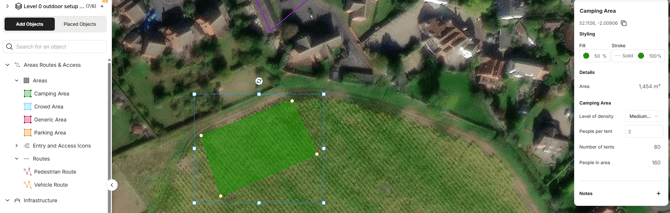
2) In the properties panel, the software has automatically calculated the number of tents and people in area, based on the area size drawn on the map.
-The default fields (level of density and people per tent) can be changed by selecting low/high and then manually typing in the number of people per tent.
Not sure which density to input?
-
Low Density (24 sqm): More space per person for a more relaxed setup.
-
Medium Density (18 sqm): Balanced layout for comfortable camping.
-
High Density (6 sqm): Maximizes the number of people in a smaller area.
Things to note:
*There are many factors that will affect the capacity including, terrain, access, layout, size of tent(big and small) and most importantly, management on site.
*We only allow whole numbers for people per tent to ensure that each tent is accounted for properly. - Crowd area:
1) Select ‘Crowd Area’ and draw desired size of area on the map.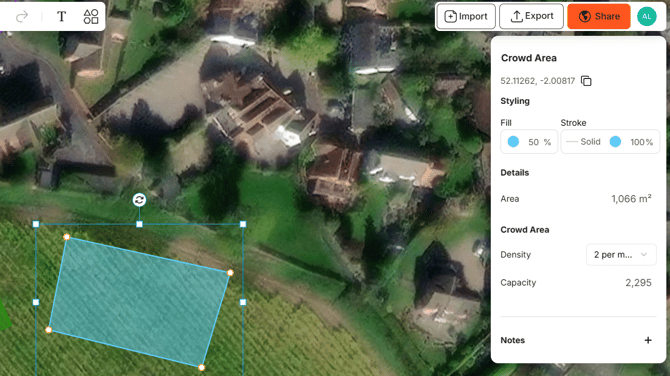
2) In the properties panel, the software automatically calculated the capacity of people based on the area drawn.
-The density can be adjusted via the 'density' dropdown and it automatically recalculates.
Things to note:
*Requirements can differ based on location; please ensure your site is compliant with fire safety laws and crowd management regulations.
-
Parking area:
1) Select ‘Parking area’ and draw desired size of area on the map.
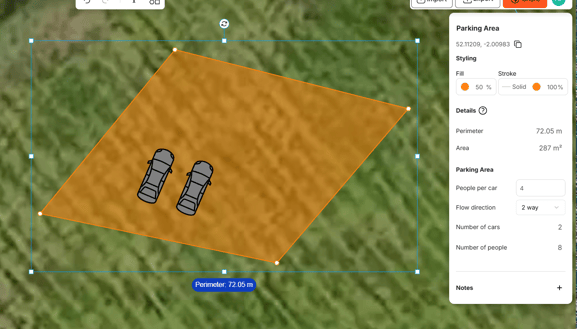
2) In the properties panel, the software automatically calculated the capacity of people and vehicles based on the area drawn.
-The density can be adjusted via the 'density' dropdown
How are these calculated?
- The cars are based on the following;
1-way traffic: Approx. 310 ft² per car (including lanes & manuvering space)
2-way traffic: Approx. 350 ft² per car (more space required for wider lanes)
FAQS:
Can I see the calculations in my csv export?
Yes- this appears in the export depending on which calculator you have used in columns.
I can’t see calculations on a generic area?
This object does not have this feature available- place crowd area for the calculations.
The calculations are displaying 0 they are not working?
If the area is too small for the capacity it will show as 0- it’s not that the calculation isn’t working it’s because the area that you have drawn cannot fit the required.
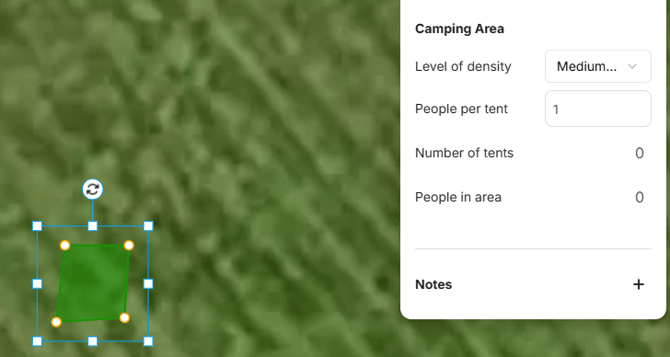
How are the calculations calculated?
- For precise information on the formulas and methodologies we recommend Fruin’s- Levels of Service and our calculators are based on this. We recommend using these calculators as a guide only and thorough site visits and careful planning and implementation are essential.
- The camping calculators are based on industry knowledge from the Purple Guide UK.