---
title: Account Management - Changing Email
description: Changing email of subscription
---
[Skip to content](https://support.oneplan.io/changing-email-#main-content)
English
Show submenu for translations
[More support](https://support.oneplan.io/kb-tickets/new?hsLang=en)
[](https://support.oneplan.io/?hsLang=en)
- [Pricing](https://www.oneplan.io/pricing/)
- [OnePlan.io](https://www.oneplan.io/)
Open main navigation
Close main navigation
- [Pricing](https://www.oneplan.io/pricing/)
- [OnePlan.io](https://www.oneplan.io/)
- English
Show submenu for translations
- [More support](https://support.oneplan.io/kb-tickets/new)
- [Contact us](mailto:help@oneplan.io)
[Contact us](mailto:help@oneplan.io)
How can we help you?
- There are no suggestions because the search field is empty.
1. [OnePlan Knowledge Hub](https://support.oneplan.io/?hsLang=en)
2. [Account Management](https://support.oneplan.io/account-management?hsLang=en)
# Account Management - Changing Email
## Users now have the ability to change the email associated with their account
**How it works:**
Opening the profile panel:
The profile panel can be accessed by clicking on your avatar and then clicking on your email
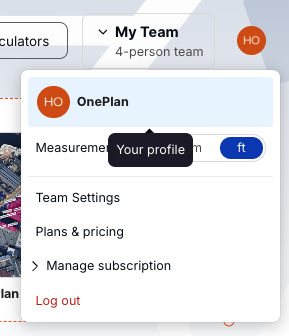
*Please note: This is only possible if you created your account using email and password. If you signed up via Google login, you can't change the email associated with your account.*
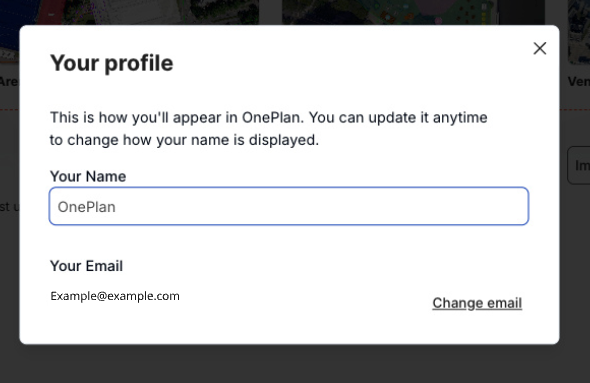
**Changing your name:**
1. Click on the input field
2. Type your name
3. Press Enter or click away to save
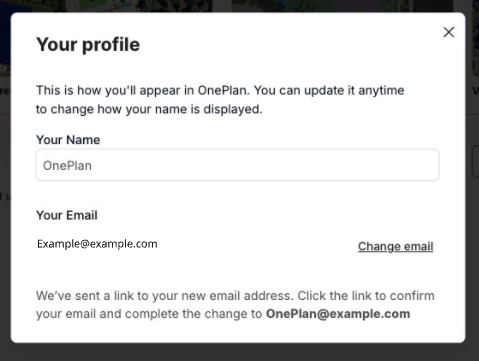
Changing your email:
Users who signed up with email and password can change their email to a new one as long as it doesn’t already exist in the database.
1. Click Change email
2. Type in the new email
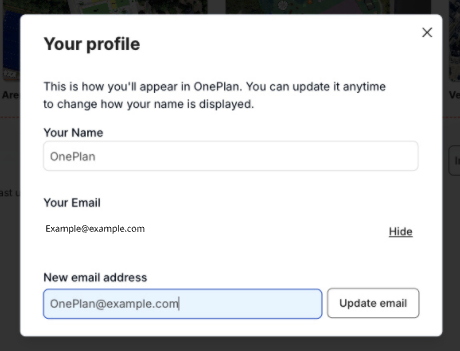
3. Click ‘Update email’
4. You will receive an email to the NEW email address
5. Once you have received the email, follow the link
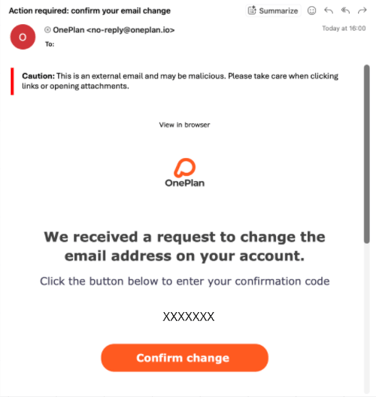
6. Fill in the verification code provided in the email
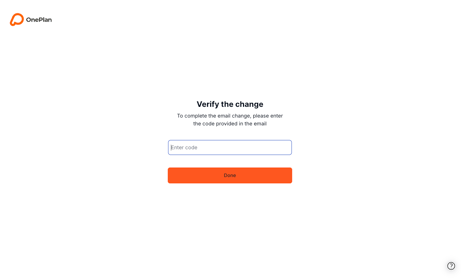
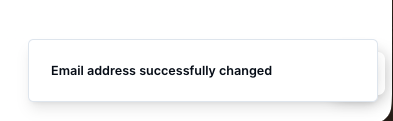
7. Click ‘Done ’, and your email will have been successfully changed
Note:
- You can only change the email to an email that does not already have an account
- The email must be a valid email address
- Links will expire after 2 hours
For team accounts that wish to change the ownership of accounts, please contact our support team at support@oneplan.io for further information.
- [Getting started](https://support.oneplan.io/getting-started?hsLang=en)
- [OnePlan Features](https://support.oneplan.io/oneplan-features?hsLang=en)
- [OnePlan Objects](https://support.oneplan.io/oneplan-objects?hsLang=en)
- [Object Management](https://support.oneplan.io/object-management?hsLang=en)
- [Account Management](https://support.oneplan.io/account-management?hsLang=en)
- [Migration](https://support.oneplan.io/migration?hsLang=en)
- [FAQs & Troubleshooting](https://support.oneplan.io/faqs-troubleshooting?hsLang=en#main-content)
- [Future Developments](https://support.oneplan.io/faqs-troubleshooting?hsLang=en#future-developments)
[](http://oneplan.io)
[mailto:email@email.com](mailto:email@email.com)
Copyright © 2025, OnePlan