
Why?
You can now discuss a specific project, task, or risk directly within your working event instead of in email or Slack threads that get disconnected from the work.
Decisions and rationale get captured over time, which matters for governance and for onboarding people who join a project later.
Stakeholders can now ask questions or flag concerns asynchronously, rather than waiting for the next sync. Once people are having conversations inside the tool, they have a reason to log in daily rather than just checking it periodically.
How it works:
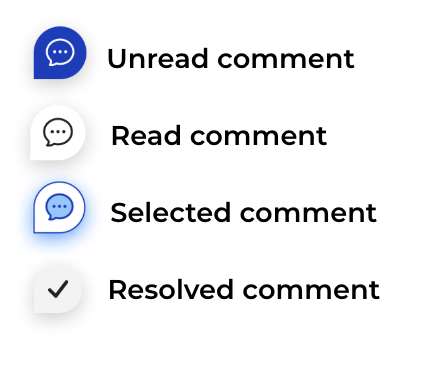
Comment key:
Placing a comment:
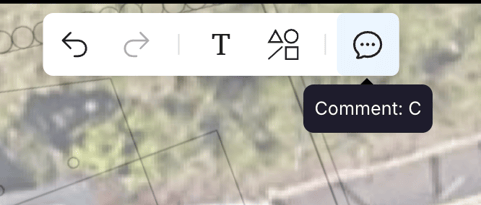
- You can activate comment mode by clicking 'C' on your keyboard or pressing the comment icon on your toolbar
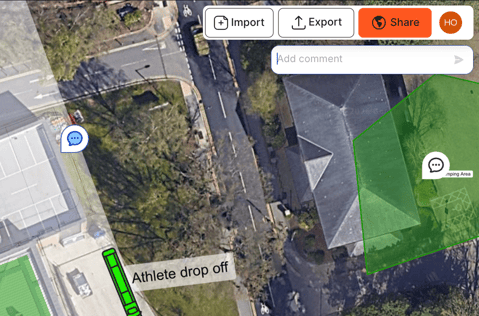
- Once active, click where on the map you would like to place the comment on the map
- The comment form will then appear in the top right-hand corner in an active state
- Start typing in the field
- When ready to send, press ‘Enter’ on your keyboard or the send button
Replying to a comment:
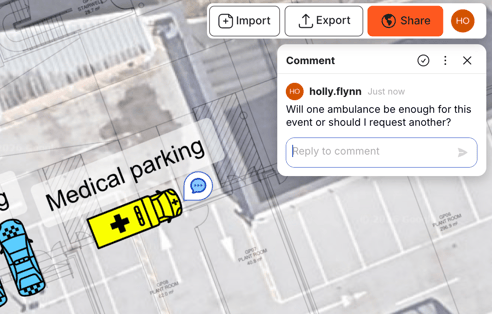
- Click on the placed comment on the map
- Type your reply in the input field
- Click ‘Enter’ or the send button
- Your reply will appear under the thread
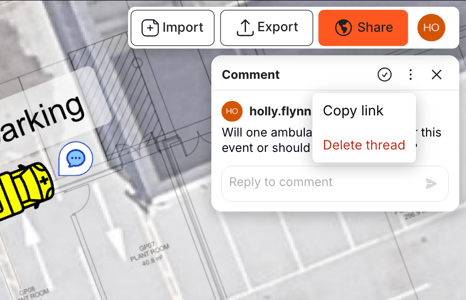
Deleting a thread:
- Click on the placed comment on the map
- Head to the kebab menu in the right-hand corner
- Click Delete thread
- Confirm the deletion (this cannot be undone)
- Your comment is deleted
*Only comment authors and event admins can delete threads*
*You can also delete an individual reply as long as you are the author of it*
Resolving a thread:
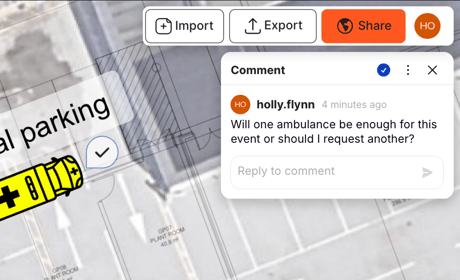
Once collaboration is complete, you might want to mark the thread as resolved
- Click on the placed comment on the map
- Click the tick on the comment form
- The comment will be marked as resolved
- You can unresolve a comment by clicking again on the resolve button
- You can still reply to a resolved thread
Link to comment:
Want to send your comment to your colleague so they know exactly where to reply? You can use the copy link feature to do so!
- Click on the placed comment on the map
- Head to the kebab menu in the right-hand corner
- Click Copy link
- Your link will be copied to your clipboard
- Send to your colleague
- Paste the link into your browser, and the event will open with the comment open and centered
Hide/Comments:
- You can hide comments by right-clicking on the map and clicking hide/show all comments
- Comments can be shown the same way or by clicking the comment button in the toolbar
Read/Unread comments:
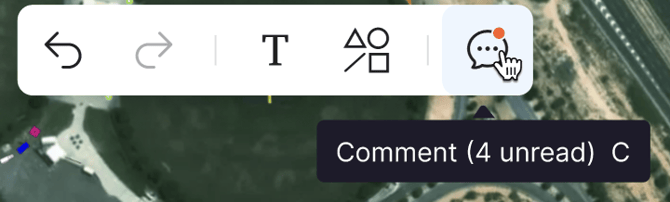
- New comments are indicated by the unread state on the map
- Once a comment is clicked on it is then marked as read
- You can see how many unread comments there are by the indicator on the toolbar
Notes
- Comments are only available on team plans
- You must be part of the team to comment on an event