
Some objects that were available in OnePlan Classic will not be supported in New OnePlan. Therefore, there could be objects that present as "conflicted" after uploading your existing event into the new platform.
To Identify Conflicted Objects:
These objects will present with a checkerboard pattern, as seen below. Scalable objects will show as a square/rectangle and icons will show as a circle.
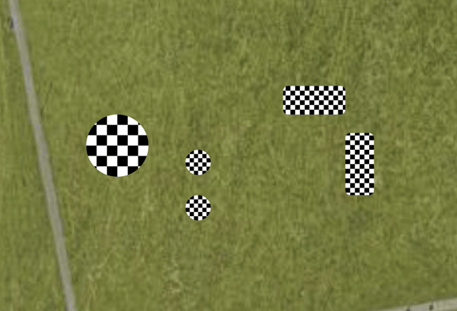
Even though they are conflicted, these objects will:
-
Remain in the exact spot they were originally placed on the map in Classic.
-
Still retain all object information within the properties panel.
- Still show in placed objects menu.
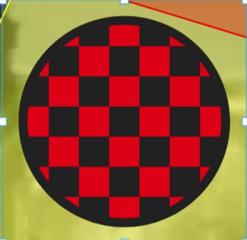
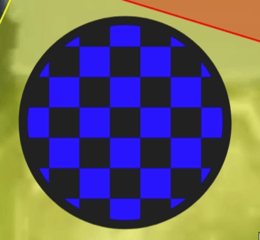
- Still remain the same color as it was in Classic, just with the checkerboard pattern.
Red & Blue Examples:
To Replace Conflicted Objects:
-
Delete the conflicted object entirely, and place a new/replacement object from the left-hand object library in it's place. Make sure to copy any notes, object names, etc. from the conflicted object. You can then paste copied info the new object, as to not lose any details.
- Click on a new/replacement object from the left-hand object library and place it on the map next to the conflicted object.
- Rename and adjust measurements to what is required.
- Copy any notes or other details from the conflicted object and paste them into the new object in the Notes tab.
- Move the new object directly over the conflicted object.
- Right-click the new object and select Send to back.
- Delete the conflicted object. The new object will already be correctly positioned behind it.
Full Migration Instruction video: