
Why use Levels?
-
Provides accurate visualization of multi-level structures.
-
Enables you to create and manage multiple floor levels within a venue.
-
Ensures clear differentiation between levels for better event space planning.
How it works:
Creating a level:
-
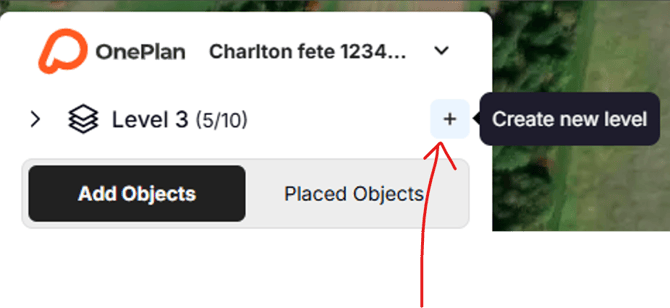
When you create a new event, a level is automatically created by default called ‘Level 0’. A new level can be created by clicking the + option;
Please note:
-
Pro/Pro+ Subscriptions: 3 Levels allowed (1 free as default, can create 2 more), 3 overlay imports (.png files) per event
-
Teams: 10 levels allowed (1 free as default, can create 9 more), 5 overlay imports (.png files) per event
*For a teams plan- all roles can create, rename, delete or rearrange levels
Renaming a level:
You can do this via-
1) Double clicking the name of the level
2)Selecting "Rename" button in levels menu
Levels menu:
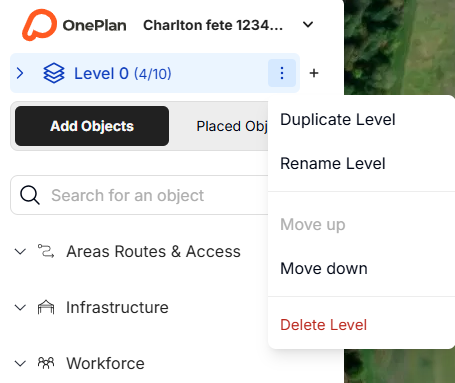
When hovering over a level, select the three vertical dots on the right. A menu will then appear where you can rename, duplicate, delete and change the order of your levels.
Duplication:
-
Upon selecting this option, it will duplicate everything withing the existing level selected. This includes overlays and objects. It will automatically name with (copy) so you can differentiate from the original event.
Deleting a level:
-
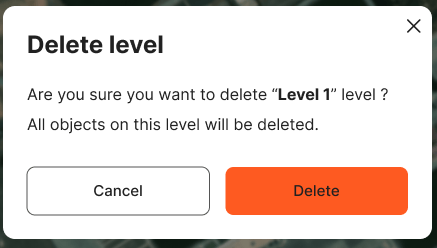
Upon selecting this option, you will be prompted to confirm the delete. After confirming, the level will be fully deleted - along with all objects you have placed upon that level.
Where can I see my levels?
-
Your "Placed Objects" section is where you should be able to see all levels.
-
Overlays are managed separately (the objects are attached to the levels, not the overlays)
How do I switch between levels?
-
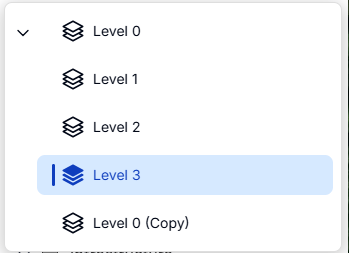
Upon clicking the arrow, you can see a dropdown of all your levels. Simply clicking on the level name will take you to that level.
How do I reorder my levels?
Selecting ‘move up’ or ‘move down’ will change the order the levels appear.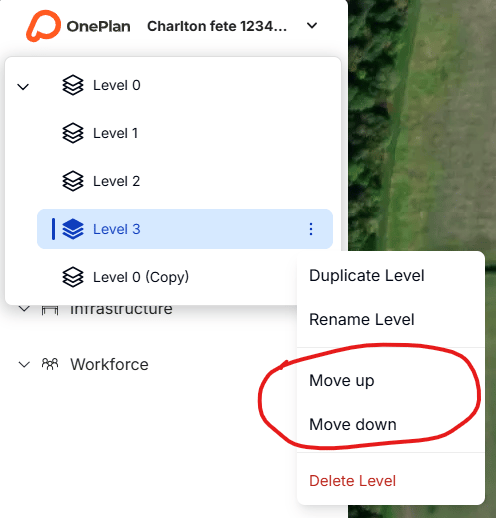
How do I Copy/paste objects between levels?
- Use multiselect to copy the desired objects on a specific level. (e.g on the Ground Floor level) Then, switch to the level you would like them to appear on (e.g: Floor 1), and upon pasting the objects, they will appear on your new level.
FAQS:
Can a level exist without an uploaded overlay?
Yes, it can.
Will my levels show in my exported CSV?
Yes, this will appear as a column in the csv export called 'Level' that will be populated by the level name.
Will object interactions such as bring to front, send to back remain the same?
Yes.