OnePlan is designed to make planning easier and faster. We recommend keeping your events to fewer than 5,000 objects to keep OnePlan smooth.
Here are some tips to get the most out of OnePlan’s performance:
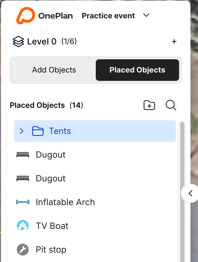
How can I see how many objects I have?
You can see how many objects are on your current level by clicking on the placed objects menu.
The type of object can also affect the performance. Icons, lines, and areas are lighter and run smoothly at scale. However, scale objects and overlays can place a greater load on the map. See more about our object types here.
Plan over multiple levels
Both our Pro and Team plans allow users to plan over multiple levels in the event plan. Levels are great for better organisation, planning over floor levels and planning multi-event days.
On top of these benefits, levels also make OnePlan run even faster!
Read more about levels here.
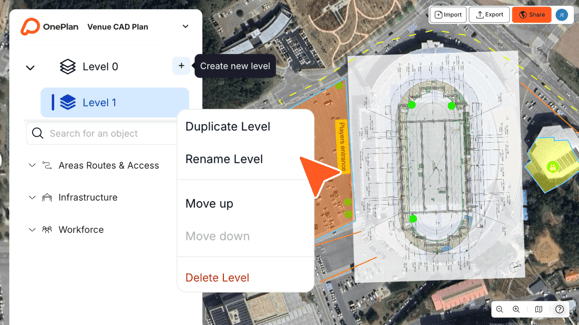
Please note: You cannot view objects on different levels at the same time
Organise objects into folders and hide them when not in use
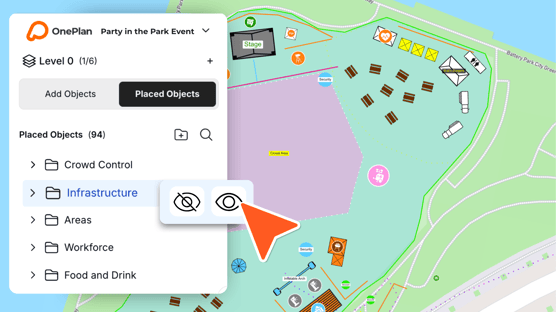
The fewer objects visible on the map at one time, the better the performance will be. Folders are the perfect way to control this.
Organise your objects into different folders, and toggle the eye icon in the placed objects menu to hide or show them on the map.
Read more about folders here.
Optimise overlay images
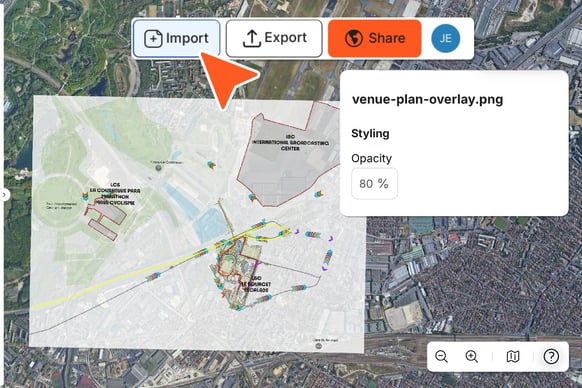
The smaller the PNG import file size, the higher the software's performance. There are multiple free resources you can use to reduce the size of your PNGs.
OnePlan has a limit of 3 overlays per plan and a maximum of 10mb per file.