---
title: How to Troubleshoot
description: Troubleshooting for OnePlan
---
[Skip to content](https://support.oneplan.io/how-to-troubleshoot#main-content)
English
Show submenu for translations
[More support](https://support.oneplan.io/kb-tickets/new?hsLang=en)
[](https://support.oneplan.io/?hsLang=en)
- [Pricing](https://www.oneplan.io/pricing/)
- [OnePlan.io](https://www.oneplan.io/)
Open main navigation
Close main navigation
- [Pricing](https://www.oneplan.io/pricing/)
- [OnePlan.io](https://www.oneplan.io/)
- English
Show submenu for translations
- [More support](https://support.oneplan.io/kb-tickets/new)
- [Contact us](mailto:help@oneplan.io)
[Contact us](mailto:help@oneplan.io)
How can we help you?
- There are no suggestions because the search field is empty.
1. [OnePlan Knowledge Hub](https://support.oneplan.io/?hsLang=en)
2. [FAQs & Troubleshooting](https://support.oneplan.io/faqs-troubleshooting?hsLang=en)
# How to Troubleshoot
## If your experience of OnePlan is not working how you would expect, here are a few troubleshooting tips you can try!
### 1. Refreshing and Hard Refreshing
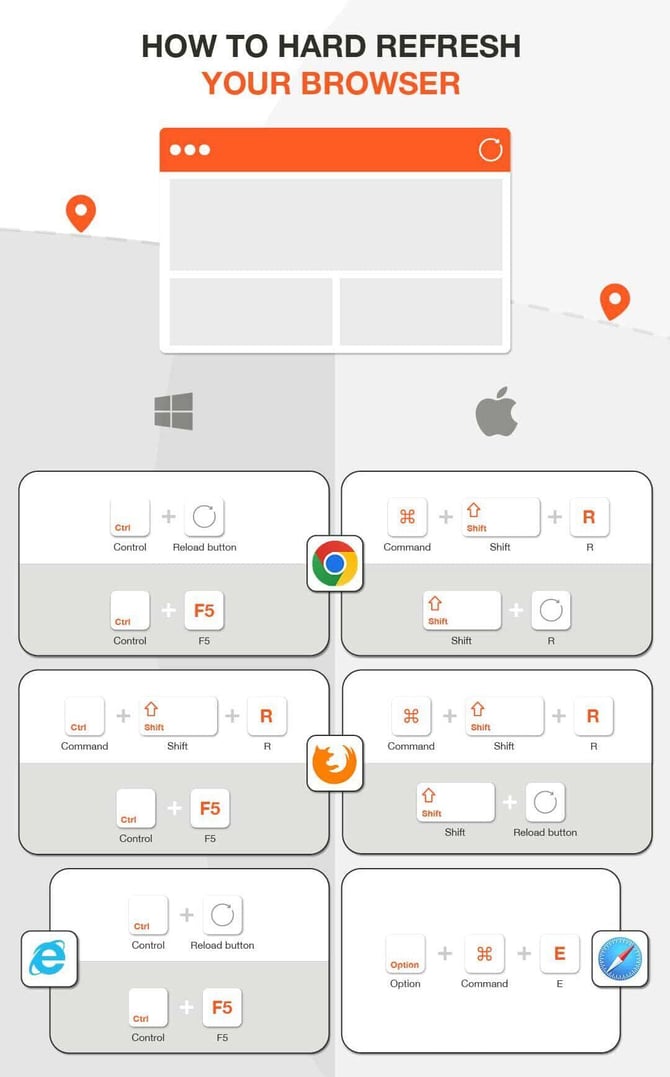
First thing may sound obvious, but try refreshing the page – this might get things back up and running.
If a simple refresh is not working, try **hard refreshing** your browser. Please follow these steps for a hard refresh!
### 2. Reduce Amount of Memory Being Used
Sometimes, glitches can be caused by your computer simply running out of memory.
How to reduce the amount of memory being used while in Studio:
1. Close any unnecessary tabs that you have open whilst using OnePlan.
2. Close any open applications not being used.
3. Restart your browser and start again – this might give your browser time to reset itself.
### 3. Still stuck? Try these slightly more technical solutions
- Try opening your event in an Incognito (private) browser/tab
- Restart your computer
- Try a different browser to the one you were using previously – we recommend these in the following order: Chrome, Safari, Firefox.
- Try on a different wifi if possible. If other people around are also using OnePlan, see if they’re having the same issue.
- Try connecting to a hotspot on your phone
- Try connecting via a LAN cable
- Try opening your event on another computer
- Go to [https://get.webgl.org/](https://get.webgl.org/) and test whether your browser supports WebGL
- Try using a VPN
If you are still having issues, you can contact us at support@oneplan.io
- [Getting started](https://support.oneplan.io/getting-started?hsLang=en)
- [OnePlan Features](https://support.oneplan.io/oneplan-features?hsLang=en)
- [OnePlan Objects](https://support.oneplan.io/oneplan-objects?hsLang=en)
- [Object Management](https://support.oneplan.io/object-management?hsLang=en)
- [Account Management](https://support.oneplan.io/account-management?hsLang=en)
- [Migration](https://support.oneplan.io/migration?hsLang=en)
- [FAQs & Troubleshooting](https://support.oneplan.io/faqs-troubleshooting?hsLang=en#main-content)
- [Future Developments](https://support.oneplan.io/faqs-troubleshooting?hsLang=en#future-developments)
[](http://oneplan.io)
[mailto:email@email.com](mailto:email@email.com)
Copyright © 2025, OnePlan