---
title: Layer Management (Z-ordering) in OnePlan
description: This article summerising how layer management (z-ordering) in OnePlan works.
---
[Skip to content](https://support.oneplan.io/layer-management-z-ordering-in-oneplan#main-content)
English
Show submenu for translations
[More support](https://support.oneplan.io/kb-tickets/new?hsLang=en)
[](https://support.oneplan.io/?hsLang=en)
- [Pricing](https://www.oneplan.io/pricing/)
- [OnePlan.io](https://www.oneplan.io/)
Open main navigation
Close main navigation
- [Pricing](https://www.oneplan.io/pricing/)
- [OnePlan.io](https://www.oneplan.io/)
- English
Show submenu for translations
- [More support](https://support.oneplan.io/kb-tickets/new)
- [Contact us](mailto:help@oneplan.io)
[Contact us](mailto:help@oneplan.io)
How can we help you?
- There are no suggestions because the search field is empty.
1. [OnePlan Knowledge Hub](https://support.oneplan.io/?hsLang=en)
2. [Object Management](https://support.oneplan.io/object-management?hsLang=en)
# Layer Management (Z-ordering) in OnePlan
## This article summerising how layer management (z-ordering) in OnePlan works.
Inside of OnePlan you can adjust which layers sit on top or behind each other. This is called Z-ordering, as it manages the order of objects on the 'Z' axis (the up and down of your 2D map)
There are 4 Z-ordering behaviours:
1. Bring forward (one place)
2. Bring to Front
3. Send Backwards (one place)
4. Send to Back
You can adjust the order of objects using two methods: keyboard shortcuts or the right-click menu.
**Keyboard Shortcuts:**
| **Behaviour** | **Keyboard shortcut** |
| --- | --- |
| Bring forward | Sft + \] |
| Bring to Front | \] |
| Send backwards | Sft + \[ |
| Send to back | \[ |
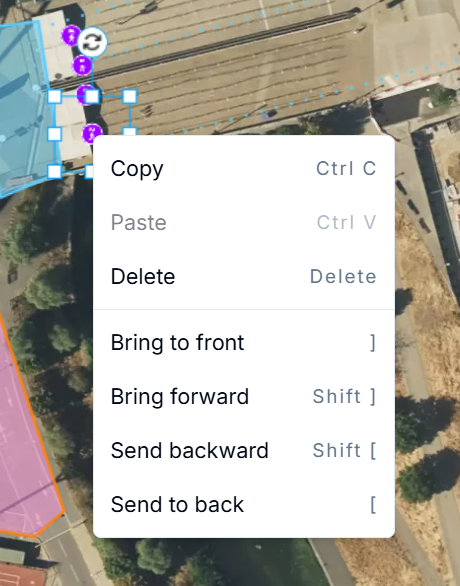
**Right-click / Context menu:**
By right-clicking on an object you will open the right click menu, clicking on the Z-ordering options will change the orders on the map.
**FAQs:**
- ***What happens when you copy and paste a layered object?***
*The software remembers the Z order so the new object will be on the same level as the original.*
- ***How can you select an object that is under another?***
*There are two workarounds for this:*
*- changing the Z order again and editing the bottom object, then sending back again.*
*- moving the top object away and then adjusting the bottom object, then moving it back again.*
- ***Can you edit nodes if they are behind an object?***
*Yes, if you select a line or a polygon, you can edit the nodes as usual from underneath the object.*
- [Getting started](https://support.oneplan.io/getting-started?hsLang=en)
- [OnePlan Features](https://support.oneplan.io/oneplan-features?hsLang=en)
- [OnePlan Objects](https://support.oneplan.io/oneplan-objects?hsLang=en)
- [Object Management](https://support.oneplan.io/object-management?hsLang=en)
- [Account Management](https://support.oneplan.io/account-management?hsLang=en)
- [Migration](https://support.oneplan.io/migration?hsLang=en)
- [FAQs & Troubleshooting](https://support.oneplan.io/faqs-troubleshooting?hsLang=en#main-content)
- [Future Developments](https://support.oneplan.io/faqs-troubleshooting?hsLang=en#future-developments)
[](http://oneplan.io)
[mailto:email@email.com](mailto:email@email.com)
Copyright © 2025, OnePlan