---
title: Using Lock and Unlock in OnePlan
description: How to lock and unlock objects in OnePlan
---
[Skip to content](https://support.oneplan.io/lock-and-unlock#main-content)
English
Show submenu for translations
[More support](https://support.oneplan.io/kb-tickets/new?hsLang=en)
[](https://support.oneplan.io/?hsLang=en)
- [Pricing](https://www.oneplan.io/pricing/)
- [OnePlan.io](https://www.oneplan.io/)
Open main navigation
Close main navigation
- [Pricing](https://www.oneplan.io/pricing/)
- [OnePlan.io](https://www.oneplan.io/)
- English
Show submenu for translations
- [More support](https://support.oneplan.io/kb-tickets/new)
- [Contact us](mailto:help@oneplan.io)
[Contact us](mailto:help@oneplan.io)
How can we help you?
- There are no suggestions because the search field is empty.
1. [OnePlan Knowledge Hub](https://support.oneplan.io/?hsLang=en)
2. [OnePlan Objects](https://support.oneplan.io/oneplan-objects?hsLang=en)
# Using Lock and Unlock in OnePlan
## This article summarizes how to lock and unlock objects inside OnePlan Studio.
OnePlan allows you to lock objects into position, preventing them from being accidentally moved, resized, or edited.
This can be particularly useful when you have finalized the size or position of different elements of your event site.
It is important to note that objects do not lock by default.
Once locked, you have the option to unlock objects if you need to make any additional amendments to them.
There are two methods to locking and unlocking objects in OnePlan.
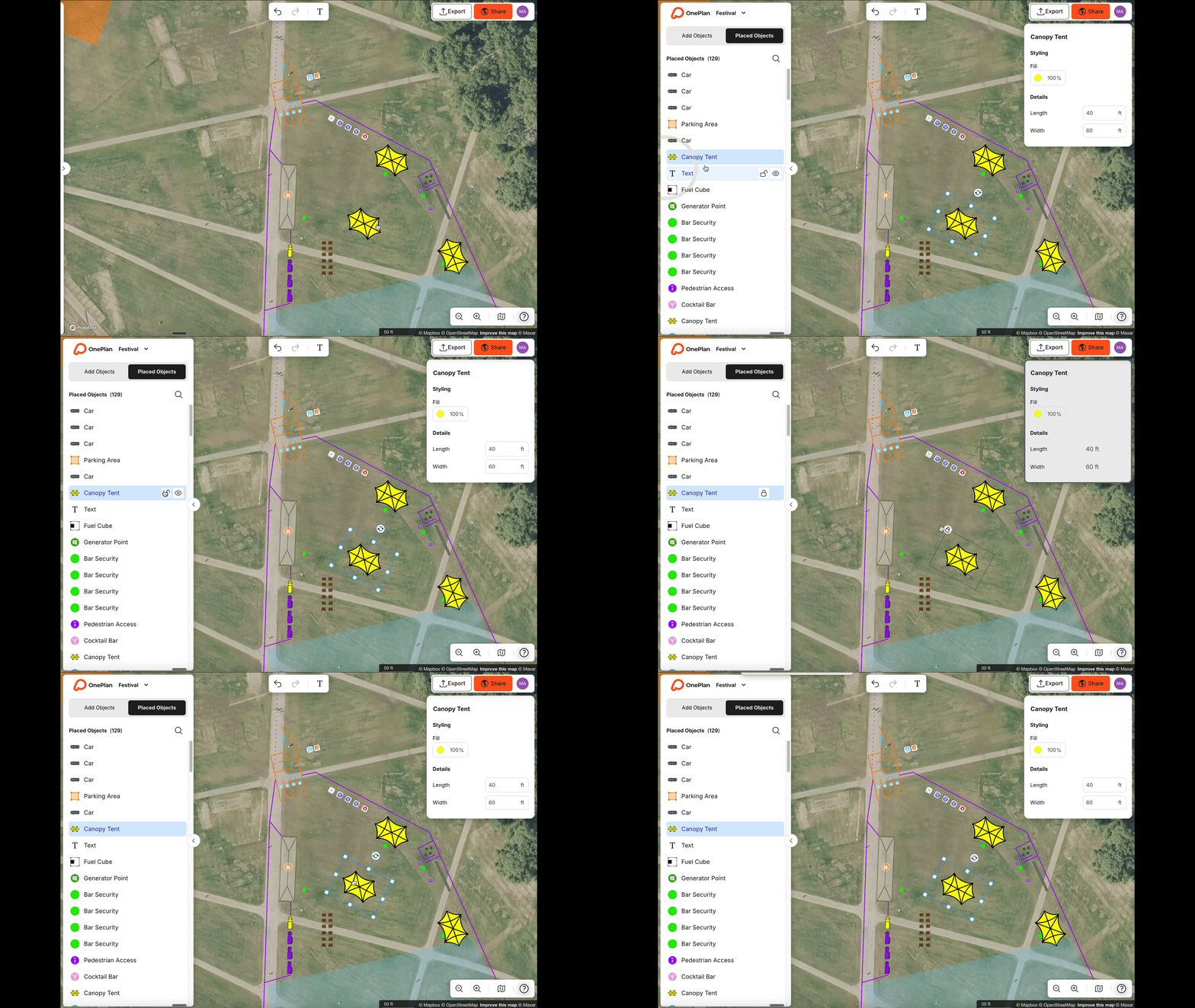
### **Method 1 - Placed Object Panel**
Select the object you'd like to lock.
Navigate to the [Placed Objects Panel](https://support.oneplan.io/place-object-panel-in-oneplan?hsLang=en).
Click the padlock next to the item, the one you have selected will be highlighted in blue
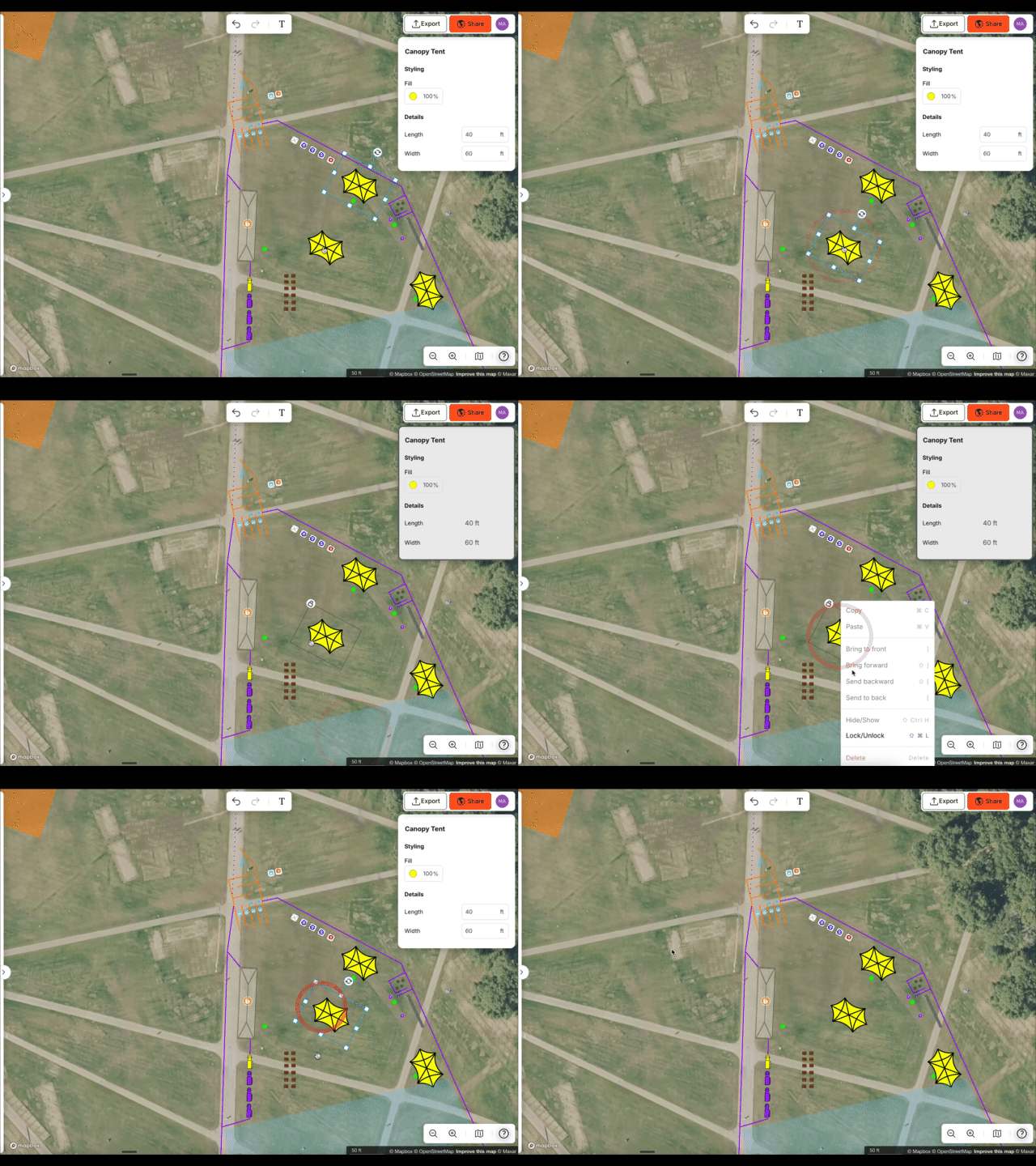
### **Method 2 - Right-hand Click Menu**
Select the object you'd like to lock
Click the right mouse button.
Select Lock or Unlock as appropriate.
### **What does locking mean?**
When you lock an object **you cannot** do these actions; resize, rotate, delete, move, copy/paste, change Z order the actions are disabled and the user has to ‘unlock’ to do any of these actions.
The padlock does not appear on a locked object until you click on the object and actions in the properties panel are disabled
- [Getting started](https://support.oneplan.io/getting-started?hsLang=en)
- [OnePlan Features](https://support.oneplan.io/oneplan-features?hsLang=en)
- [OnePlan Objects](https://support.oneplan.io/oneplan-objects?hsLang=en)
- [Object Management](https://support.oneplan.io/object-management?hsLang=en)
- [Account Management](https://support.oneplan.io/account-management?hsLang=en)
- [Migration](https://support.oneplan.io/migration?hsLang=en)
- [FAQs & Troubleshooting](https://support.oneplan.io/faqs-troubleshooting?hsLang=en#main-content)
- [Future Developments](https://support.oneplan.io/faqs-troubleshooting?hsLang=en#future-developments)
[](http://oneplan.io)
[mailto:email@email.com](mailto:email@email.com)
Copyright © 2025, OnePlan