---
title: Map Rotation & Compass
description: The ability to rotate your OnePlan map/event.
---
[Skip to content](https://support.oneplan.io/map-rotation-compass#main-content)
English
Show submenu for translations
[More support](https://support.oneplan.io/kb-tickets/new?hsLang=en)
[](https://support.oneplan.io/?hsLang=en)
- [Pricing](https://www.oneplan.io/pricing/)
- [OnePlan.io](https://www.oneplan.io/)
Open main navigation
Close main navigation
- [Pricing](https://www.oneplan.io/pricing/)
- [OnePlan.io](https://www.oneplan.io/)
- English
Show submenu for translations
- [More support](https://support.oneplan.io/kb-tickets/new)
- [Contact us](mailto:help@oneplan.io)
[Contact us](mailto:help@oneplan.io)
How can we help you?
- There are no suggestions because the search field is empty.
1. [OnePlan Knowledge Hub](https://support.oneplan.io/?hsLang=en)
2. [OnePlan Features](https://support.oneplan.io/oneplan-features?hsLang=en)
# Map Rotation & Compass
## This feature allows you to rotate your event plan and map for accurate planning.
**What is it?**
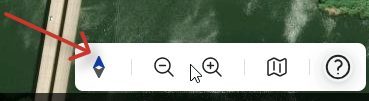
This feature allows you to see which orientation your map is currently pointing. It also gives you the ability to rate your map to a different direction.
**Why use it?**
A compass helps you understand which orientation you are currently using. Some users need the ability to rotate the map to a different orientation, allowing them to quickly adapt the map to their immediate needs. For example, rotating the map to face landmarks or particular destinations makes it easier to identify key features and plan routes.
**How it works:**
- ***Rotating the map:***
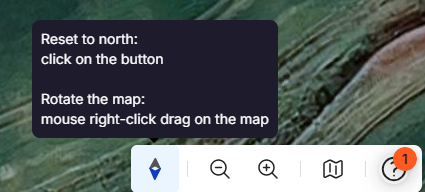
1. You can rotate the map via holding right click on your mouse and dragging the map
***Resetting the map back to North orientation:***
\- If you have rotated the map to a different orientation (for example South) simply click the compass button to reset back to North;
**FAQS:**
**I can’t rotate the map using the mouse controls.**
Apple lets users configure how right-click or aka multi-touch gesture behaves. If you can’t rotate your map;
1\) Try right-click mouse down, or press down two finger on the track pad, then move mouse or fingers on track pad. If that still isn't working, try the below.
2)Check mouse and trackpad settings on laptop to reconfigure;
System Settings \> Mouse \> Secondary Click switch on
**Does my orientation save when I leave the event?**
Yes, rotation persists on an event level basis- so as you left it. For example: if your event 1 is at south orientation, if you move to event 2 (another event) and then switch back to event 1, your event will still be at south orientation.
\*If you have multiple levels in an event your orientation persist on a level basis
(so you can have multiple levels in an event with different orientations).
- [Getting started](https://support.oneplan.io/getting-started?hsLang=en)
- [OnePlan Features](https://support.oneplan.io/oneplan-features?hsLang=en)
- [OnePlan Objects](https://support.oneplan.io/oneplan-objects?hsLang=en)
- [Object Management](https://support.oneplan.io/object-management?hsLang=en)
- [Account Management](https://support.oneplan.io/account-management?hsLang=en)
- [Migration](https://support.oneplan.io/migration?hsLang=en)
- [FAQs & Troubleshooting](https://support.oneplan.io/faqs-troubleshooting?hsLang=en#main-content)
- [Future Developments](https://support.oneplan.io/faqs-troubleshooting?hsLang=en#future-developments)
[](http://oneplan.io)
[mailto:email@email.com](mailto:email@email.com)
Copyright © 2025, OnePlan