
How it works:
Adding a pack;
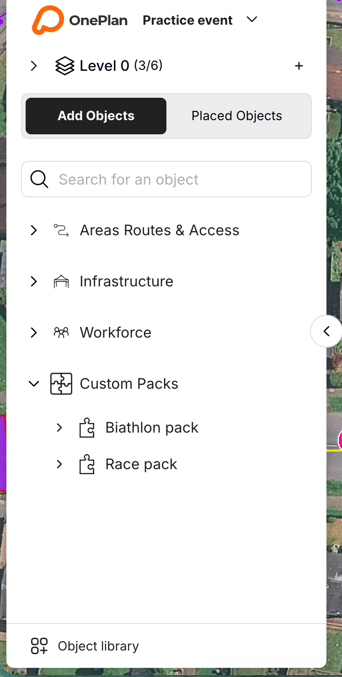
1. Navigate to ‘Object library’ at the bottom of the object menu and click it
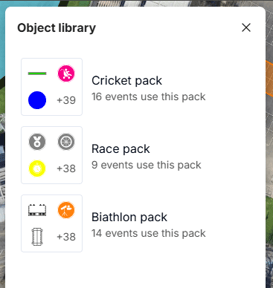
2. The library will open with the current available packs
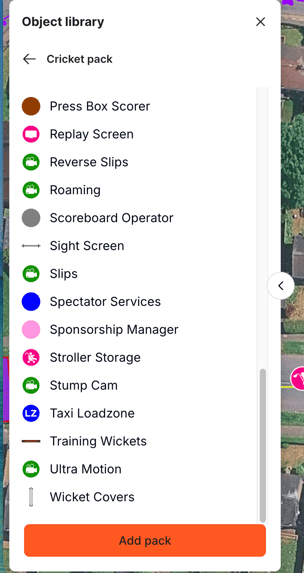
3. Click into the pack you’d like to activate and press the ‘add pack’ button- this will turn to ‘added’ once pressed
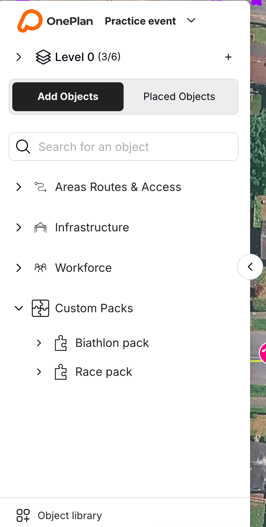
4.Click out of the object library and your pack will appear in the ‘custom packs’ section in your main menu;
Removing a pack;
If you no longer want to have the pack, you can remove it by going back into the packand re-clicking the ‘Added’ button, and it will simply remove it for you.
Will this affect my currently placed objects from the pack?
No- if you choose to remove a pack but have already placed some objects from the pack, those objects will remain, but you will need to re-add the pack before adding more objects from that pack.
FAQS:
Is the object library available for all?No- only for those on paid plans. For free users, you will still see the object library, but
will have to upgrade to a paid plan in order to use the objects.
I have added a pack- why can’t I see it in all my events?
The packs work on an event-level basis, meaning if a specific pack has been added,
I have added a pack- why can’t I see it in all my events?
The packs work on an event-level basis, meaning if a specific pack has been added,
it will need to be added per event.
Can I add more than 1 pack to an event?
Yes- you can add multiple packs to the same event.
Can I add more than 1 pack to an event?
Yes- you can add multiple packs to the same event.