---
title: Object Toolbar Overview
description: The article summarizes the object toolbar inside of OnePlan.
---
[Skip to content](https://support.oneplan.io/object-toolbar-overview#main-content)
English
Show submenu for translations
[More support](https://support.oneplan.io/kb-tickets/new?hsLang=en)
[](https://support.oneplan.io/?hsLang=en)
- [Pricing](https://www.oneplan.io/pricing/)
- [OnePlan.io](https://www.oneplan.io/)
Open main navigation
Close main navigation
- [Pricing](https://www.oneplan.io/pricing/)
- [OnePlan.io](https://www.oneplan.io/)
- English
Show submenu for translations
- [More support](https://support.oneplan.io/kb-tickets/new)
- [Contact us](mailto:help@oneplan.io)
[Contact us](mailto:help@oneplan.io)
How can we help you?
- There are no suggestions because the search field is empty.
1. [OnePlan Knowledge Hub](https://support.oneplan.io/?hsLang=en)
2. [Object Management](https://support.oneplan.io/object-management?hsLang=en)
# Object Toolbar Overview
## The article summarizes the object toolbar inside of OnePlan.
#### After creating an event, you will be taken to the map page and the Object menu is open by default.
The object menu is where you can access all of the different objects (icons, scalable objects, areas and lines) used for creating your plan.
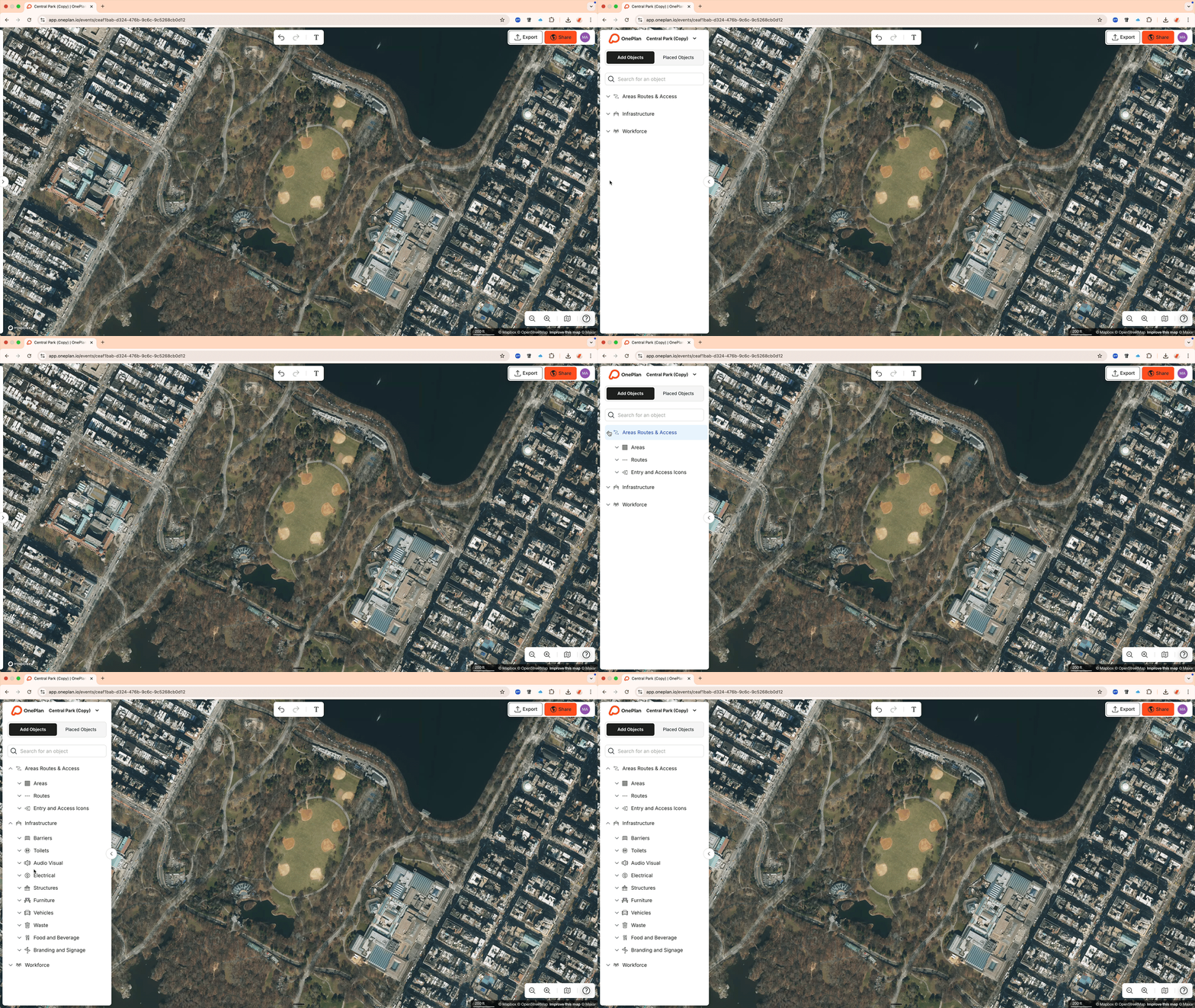
You can at any time collapse the Object menu by clicking on the chevron to the right of the menu. Closing this menu allows for more space on your screen to see your plan.
### Finding Objects
There are **two ways** to find an object.
The first method is to manually access each category until you find the object you need.
Objects are sorted into different categories which can be accessed by clicking on the chevron to the left of the menu item. This allows you to open and close different sub-categories to find the object you need.
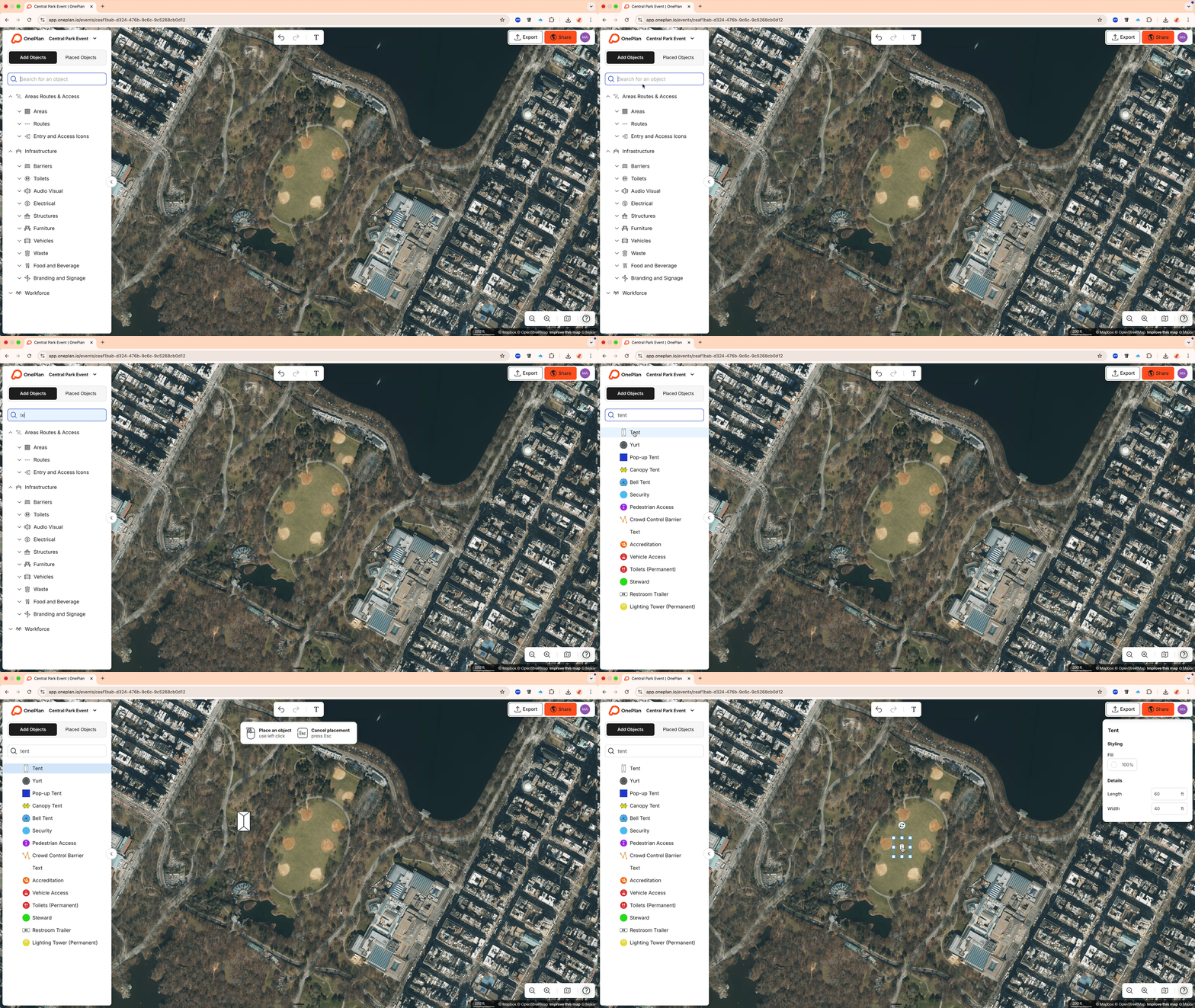
The second method is to use the search box at the top of the Object menu. As you type, OnePlan will provide suggestions of the closest matching object:
### Placing Objects
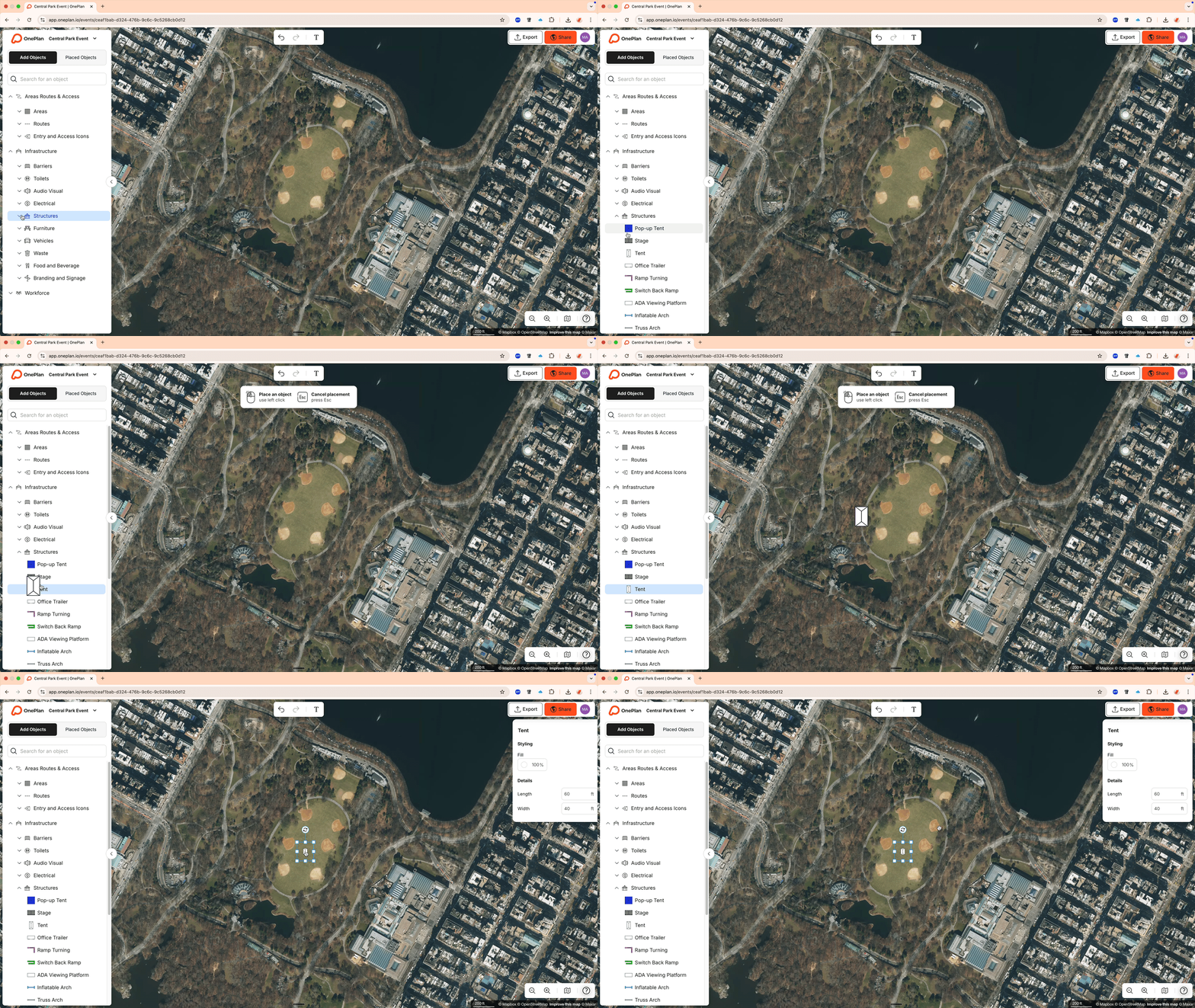
When you click on the object in the menu, the object preview shows instead of a cursor.
You then need to left-click on the map to place the object.
- [Getting started](https://support.oneplan.io/getting-started?hsLang=en)
- [OnePlan Features](https://support.oneplan.io/oneplan-features?hsLang=en)
- [OnePlan Objects](https://support.oneplan.io/oneplan-objects?hsLang=en)
- [Object Management](https://support.oneplan.io/object-management?hsLang=en)
- [Account Management](https://support.oneplan.io/account-management?hsLang=en)
- [Migration](https://support.oneplan.io/migration?hsLang=en)
- [FAQs & Troubleshooting](https://support.oneplan.io/faqs-troubleshooting?hsLang=en#main-content)
- [Future Developments](https://support.oneplan.io/faqs-troubleshooting?hsLang=en#future-developments)
[](http://oneplan.io)
[mailto:email@email.com](mailto:email@email.com)
Copyright © 2025, OnePlan