The Dashboard combines all your events into one colourful, centralised place. You can create and adjust events and see inspiration for how events could look in OnePlan.
How it works:
Dashboard elements:
-
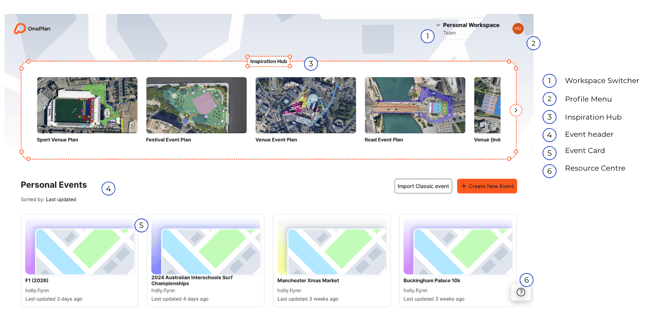
Workspace switcher- This switcher indicates which workspace you are in. If you are in a team account, this is where you will switch between your personal workspace and your team's workspace.
-
Profile menu- This is where you can access your billing details, pricing plans and change your preferred units of measurement
-
Inspiration hub- See example events showcasing the features that OnePlan has!
-
Event header- Indication of which workspace you are currently in
-
Event card - Each event has its own event card that includes the event name, who created it, and when it was last updated.
-
Resource Centre- This is where you can access our helpdesk, knowledge hub, see announcements, shortcuts and demo links!
Entering an event:
-
To access an event, you can double-click on the event card (5), and you will be loaded into the event.
Event actions:
-
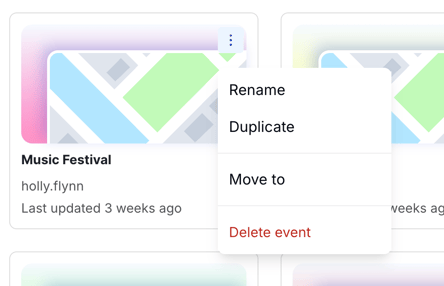
When you hover on an event card, a 3-dot menu appears, and you can access some of the event settings.
-
From this menu, you can rename, delete or move an event to a team workspace.
Return to dashboard:
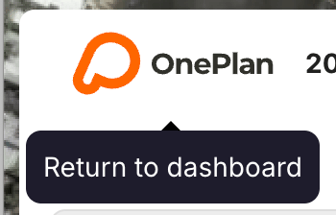
Once in an event, you can return to the dashboard by clicking the OnePlan logo in the top left-hand side of the map page.