
In OnePlan, every user has a Personal Workspace — the main dashboard for your account where your events are stored. You can read more about our dashboard here.
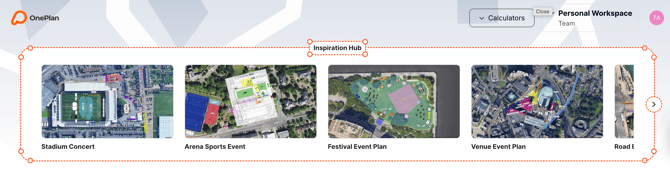
If you have a team subscription or are invited to a team, you will also have access to that team's workspace. Here is where you can work collaboratively on events
Here is our article on getting set up as a team
If you have a team workspace, you can switch between your personal and team workspaces by clicking the dropdown box in the top-right corner.
Note: Your Personal Workspace capabilities are determined by the subscription associated with your email. For example, if you are added to a team, team features will only be available in the team workspace — your Personal Workspace will remain on the free plan.
This will show all the different workspaces you have access to (multiple if you are part of different teams)
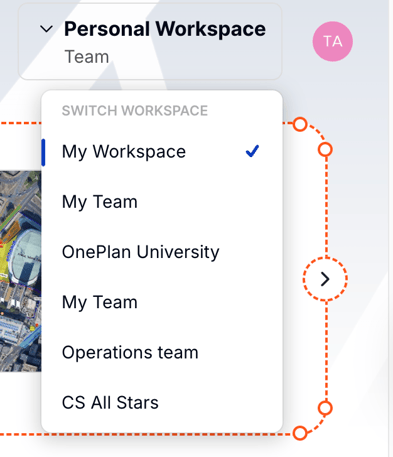
You must be in a team workspace to access events created by your team. The only exception is if you have been shared a view-only link, which grants read-only access without requiring workspace membership.
If you have created an event in your personal workspace and want to move it to your team workspace, you can:
How it works:
-
Open the event you want to move, then click the event dropdown menu (located at the top of the event).
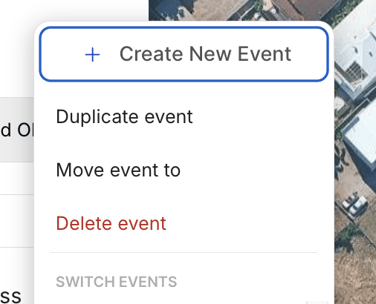
- Select ‘Move to’ and a pop-up will appear
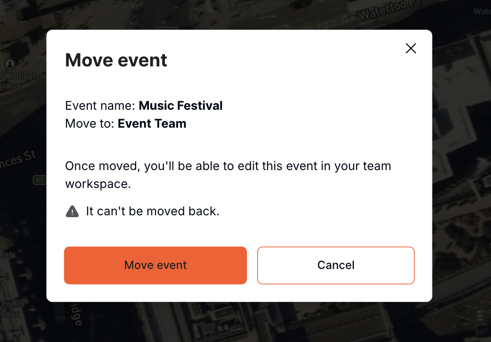
-
Click ‘Move event’
-
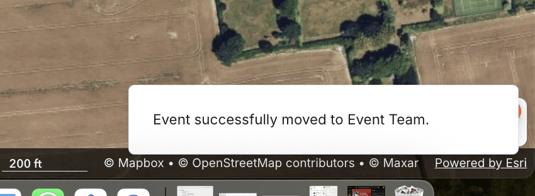
Your event will be moved to the workspace, with the moved workspace open
You can read more on this here
Note: Event transfers are one-directional. You can only move events from a Personal Workspace to a team workspace — you cannot transfer them back from a team workspace to a Personal Workspace.