---
title: Uploading Classic Events/Files into New OnePlan
description: This allows you to upload your downloaded existing events into New OnePlan. This is step two in the event migration process.
---
[Skip to content](https://support.oneplan.io/uploading-events/files-into-oneplan-new#main-content)
English
Show submenu for translations
[More support](https://support.oneplan.io/kb-tickets/new?hsLang=en)
[](https://support.oneplan.io/?hsLang=en)
- [Pricing](https://www.oneplan.io/pricing/)
- [OnePlan.io](https://www.oneplan.io/)
Open main navigation
Close main navigation
- [Pricing](https://www.oneplan.io/pricing/)
- [OnePlan.io](https://www.oneplan.io/)
- English
Show submenu for translations
- [More support](https://support.oneplan.io/kb-tickets/new)
- [Contact us](mailto:help@oneplan.io)
[Contact us](mailto:help@oneplan.io)
How can we help you?
- There are no suggestions because the search field is empty.
1. [OnePlan Knowledge Hub](https://support.oneplan.io/?hsLang=en)
2. [Migration](https://support.oneplan.io/migration?hsLang=en)
# Uploading Classic Events/Files into New OnePlan
## This allows you to upload your downloaded existing events into New OnePlan. This is step two in the event migration process.
**Full Migration instruction video:**
**How to Upload?**
- Log into your New OnePlan account
- If this is your first time logging into your account, a pop up will appear. Click the "Upload Classic Event File" button
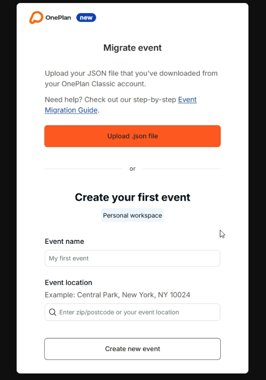
- - If you have already logged into your account previously, head to your event drop down menu in the top left. Click the "Import Classic event" option within the menu.
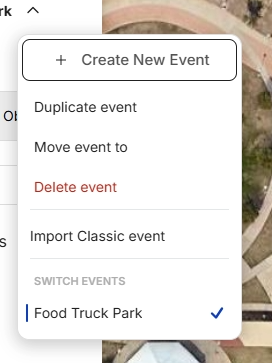
- You will then be able to select a previously downloaded GeoJSON file of your Classic event. **Please note** - only GeoJSON files are able to be uploaded.
- Once the upload is complete, your event will be created with the exact name and location from the file.
- You are only able to upload one event at a time, so repeat the upload process as many times as needed.
**Since we have made some changes to the object list in New OnePlan, objects within your newly uploaded map might not have migrated over exactly the same. (Icon, color of object, etc.) Please visit the [Conflicted Objects](https://support.oneplan.io/conflicted-objects-in-oneplan-new?hs_preview=yqcLbNgK-224209040576&hsLang=en) article for more information and helpful tips.**
- [Getting started](https://support.oneplan.io/getting-started?hsLang=en)
- [OnePlan Features](https://support.oneplan.io/oneplan-features?hsLang=en)
- [OnePlan Objects](https://support.oneplan.io/oneplan-objects?hsLang=en)
- [Object Management](https://support.oneplan.io/object-management?hsLang=en)
- [Account Management](https://support.oneplan.io/account-management?hsLang=en)
- [Migration](https://support.oneplan.io/migration?hsLang=en)
- [FAQs & Troubleshooting](https://support.oneplan.io/faqs-troubleshooting?hsLang=en#main-content)
- [Future Developments](https://support.oneplan.io/faqs-troubleshooting?hsLang=en#future-developments)
[](http://oneplan.io)
[mailto:email@email.com](mailto:email@email.com)
Copyright © 2025, OnePlan