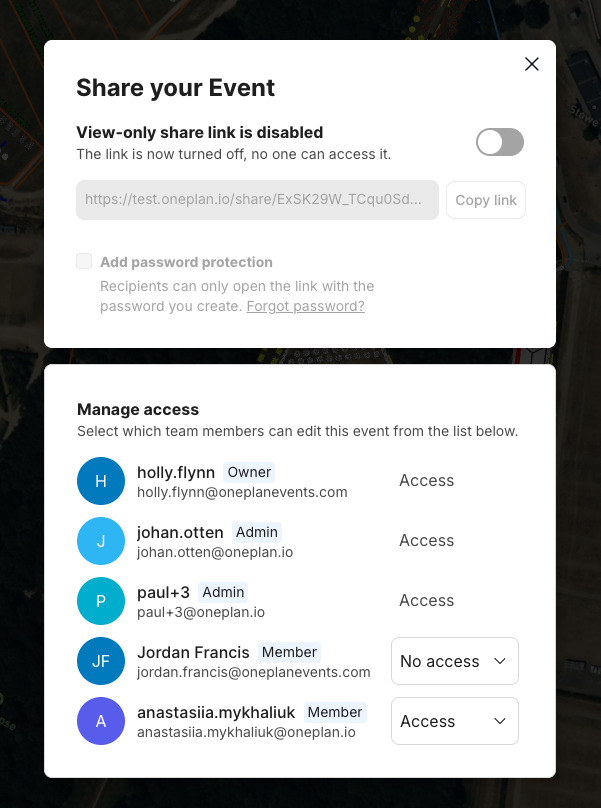
Why: More permissions help with security and collaboration for teams. Event planners can plan in the team's workspace and then, when ready, share edit access with other team members.
As a team owner, I would like Planner A to have access to Event 1 but not to Event 2.
Example:
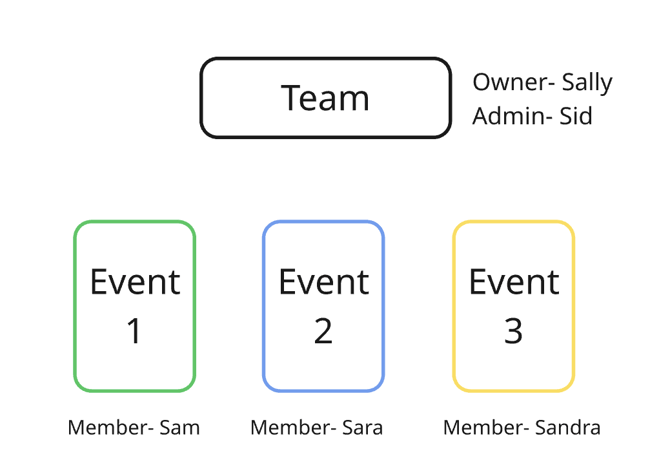
-
Team is owned by Sally (Access to all events)
-
Sid is Admin, and he also has access to all three events
-
Sam is planning Event 1; he does not have access to Event 2 or 3
-
Sara is planning Event 2; she does not have access to Event 1 or 3
-
Sandra is planning Event 3; she does not have access to Event 1 or 2
How it works:
Event permissions are accessed via the share dialogue for the event. This can be accessed in 2 ways:
-
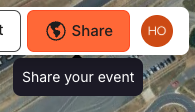
Clicking the share button on the map page
-
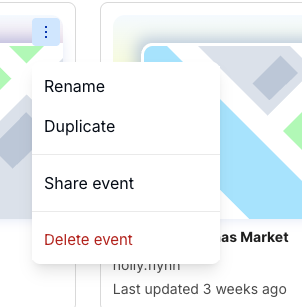
From the 3-dot menu on the event in your home dashboard
How to change the access:
You can change team members' access via the dropdown. Once you give someone access, the event will appear on their dashboard, and they can start editing.
Who has access to what?
-
Team owners and admins have access to ALL events in the team workspace
-
Team members have access to the events they have created and any that they have been added to
-
New members join the team with access to no events; the team owner or admin will have to add them to individual events
|
Team Owner (TO) |
Team Admin (TA) |
Event Owner (Member) (EO) |
Regular Member (M) |
|---|---|---|---|
|
Access to ALL events |
Access to ALL events |
Access to their own events and to any that they get added to |
Only has access to those they are invited to |
|
CANNOT be removed |
CANNOT be removed |
CAN be removed but only by the TO or TA |
CAN be removed by TO, TA and EO |
|
Can change access on any events |
Can change access on any events |
Can change access on their own events |
Cannot change access |