---
title: Using Different Maps In OnePlan
description: Summarizes the different map canvases inside of one plan and how to switch between them.
---
[Skip to content](https://support.oneplan.io/using-different-map-canvases-in-oneplan#main-content)
English
Show submenu for translations
[More support](https://support.oneplan.io/kb-tickets/new?hsLang=en)
[](https://support.oneplan.io/?hsLang=en)
- [Pricing](https://www.oneplan.io/pricing/)
- [OnePlan.io](https://www.oneplan.io/)
Open main navigation
Close main navigation
- [Pricing](https://www.oneplan.io/pricing/)
- [OnePlan.io](https://www.oneplan.io/)
- English
Show submenu for translations
- [More support](https://support.oneplan.io/kb-tickets/new)
- [Contact us](mailto:help@oneplan.io)
[Contact us](mailto:help@oneplan.io)
How can we help you?
- There are no suggestions because the search field is empty.
1. [OnePlan Knowledge Hub](https://support.oneplan.io/?hsLang=en)
2. [OnePlan Features](https://support.oneplan.io/oneplan-features?hsLang=en)
# Using Different Maps In OnePlan
## Summarises the different map options inside of OnePlan and how to switch between them.
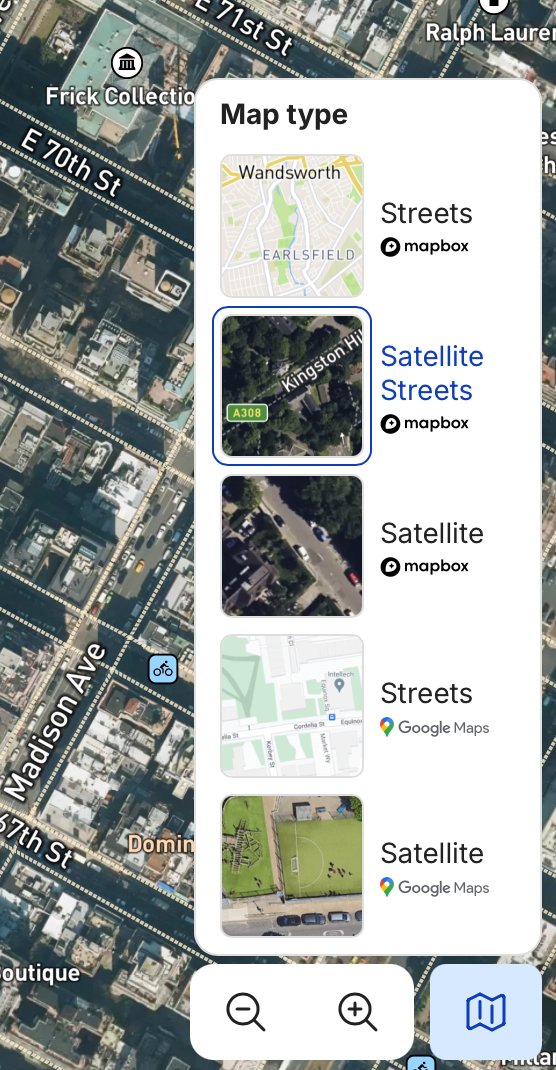
You can change the background map canvas in your map view by clicking the map icon in the bottom right corner of the studio window and selecting from the available options. The available background map canvases are:
- - Google Street Map
- Google Satellite
- Mapbox Street Map
- Mapbox Satellite
- Mapbox Satellite Street Map
You can switch between map canvases at any time — all placed objects remain in position.
## **How to change the map canvas**
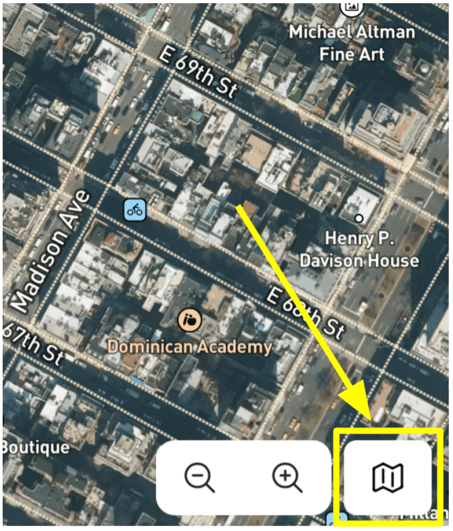
To switch between different map canvases, click the **map icon** in the bottom right of the map view:
Next, select the map canvas you wish to use by clicking on it:
****
Once you have selected your canvas, click the **map icon** again to close the map canvas selector. The map view will immediately update to display your chosen canvas, while all previously placed objects remain in their original positions.
- [Getting started](https://support.oneplan.io/getting-started?hsLang=en)
- [OnePlan Features](https://support.oneplan.io/oneplan-features?hsLang=en)
- [OnePlan Objects](https://support.oneplan.io/oneplan-objects?hsLang=en)
- [Object Management](https://support.oneplan.io/object-management?hsLang=en)
- [Account Management](https://support.oneplan.io/account-management?hsLang=en)
- [Migration](https://support.oneplan.io/migration?hsLang=en)
- [FAQs & Troubleshooting](https://support.oneplan.io/faqs-troubleshooting?hsLang=en#main-content)
- [Future Developments](https://support.oneplan.io/faqs-troubleshooting?hsLang=en#future-developments)
[](http://oneplan.io)
[mailto:email@email.com](mailto:email@email.com)
Copyright © 2025, OnePlan