
Live measurement allows you to measure a linear distance with extreme accuracy on the map. It is particularly helpful when measuring distances between objects such as tents, barriers, chairs, portable restrooms, etc.
How it works:
-
The measurement will display in "ft" or "meters", depending on your unit of measurement settings.
- To get a quick generic measuring line, hit 'L' on your keyboard and the tool will appear straight away! This is a great way to measure between objects or to measure a distance between a train station and an event entrance.
-
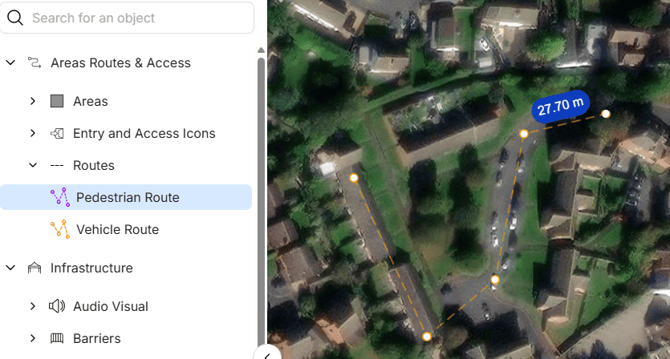
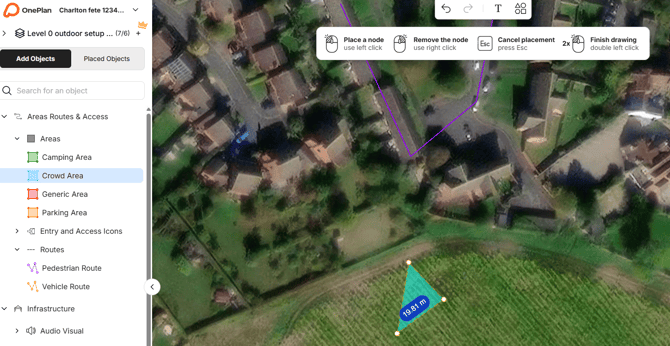
To see the measurement, select what object you would like to draw. (area, route, etc) Start to place on the map with your mouse, and a live measurement will display on the map as you continue to draw.
Live measurement example for line/route
Live measurement example for area
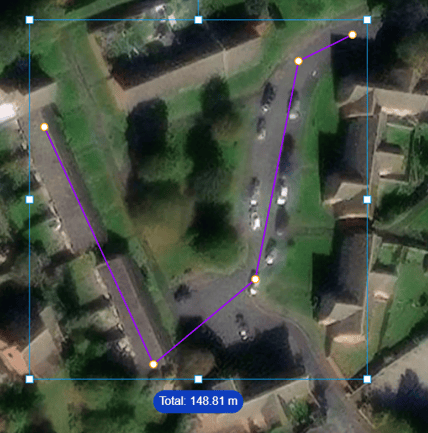
Displaying total line length:
-
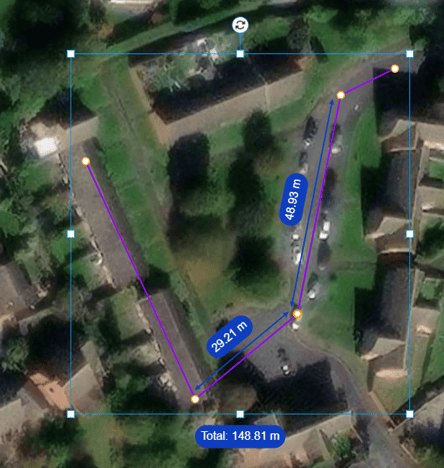
Once you have finished drawing, the total length will be displayed. This total can also be viewed in the properties panel.
- Clicking off of the object closes the line measurement feature.
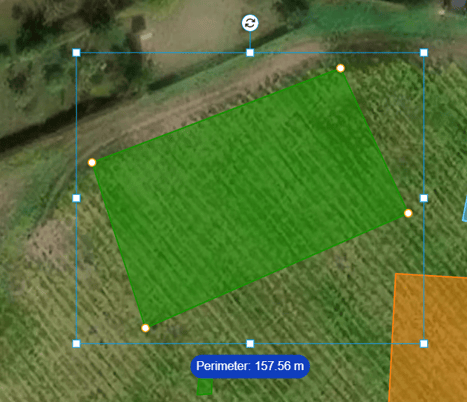
Displaying total area perimeter:
-
Once you have finished drawing, the total area perimeter will be displayed.
- Clicking off of the object closes the line measurement feature.
Seeing individual measurements:
-
When you draw a line with multiple nodes, we will display the segment length between each pair of nodes.
-
Hovering on a line shows you the individual measurement for that specific segment.
FAQS
I can’t see the measurement between different segments.
Make sure to finish drawing the object and then hover over a node for the measurement to display.
Can I turn the measurements off?
No- as this is an active feature when drawing, you cannot toggle it on and off.
*The feature is not available when you multi-select lines.